


Boardroom: How to Wirelessly Present From Laptop

Jan 06, 2026
 97
97
Boardroom: How to Wirelessly Present From Laptop
Before completing these steps, make sure you are connected to WiFi
1) Switch the left TV input to HDMI 3. This should display the j5Create menu
2) On your laptop, press Windows + K to enter cast mode. Select ScreenCast284621C1. Wait for your laptop to connect
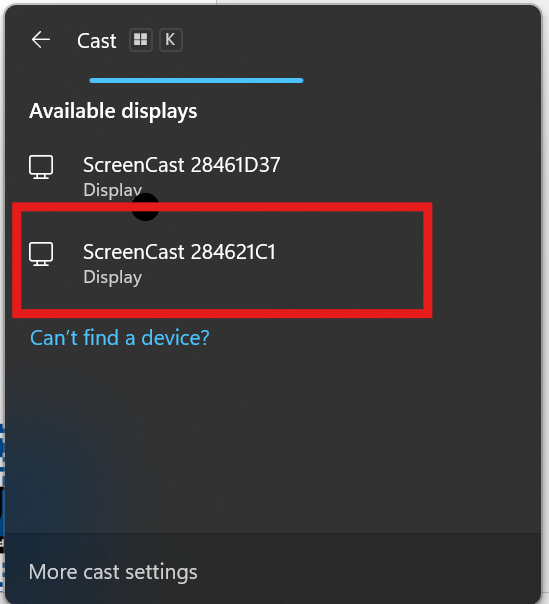
3) Your laptop screen should now be mirrored on your device. To exit, click the Cast  symbol on the bottom right and click Disconnect. When you're finished, change the left TV's input to HDMI 1

