Using the HappyFox Help Assistant

Last updated: Jun 16, 2026
880
views

What is it?
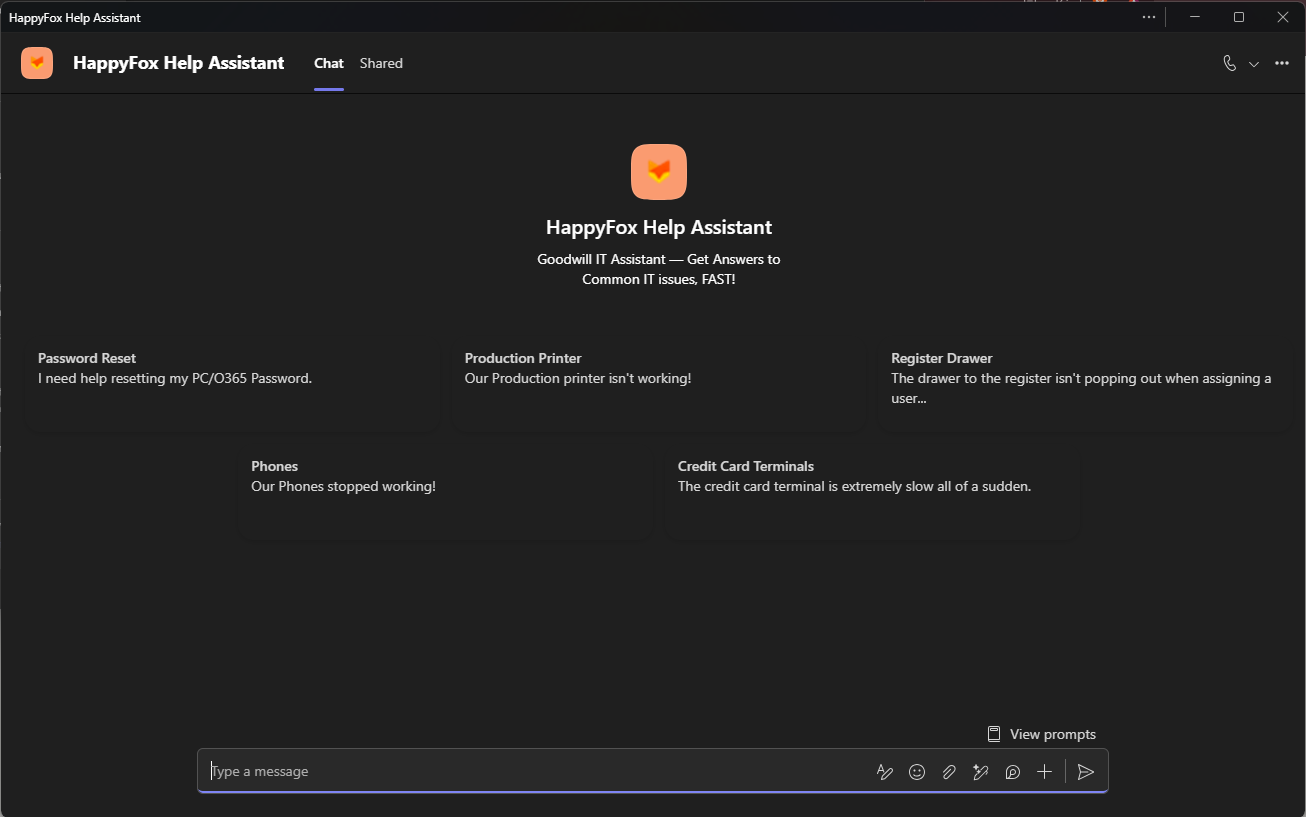
The HappyFox Help Assistant is an AI-powered chatbot available in Microsoft Teams and Copilot. It's designed to give you quick answers to common IT questions. Especially helpful when helpdesk staff are unavailable or you need a fast answer outside of business hours.
Where to find it
- Open Microsoft Teams, Copilot or Apps sidebar.
- Search "HappyFox Help Assistant" to start a chat.
How to use it
- Start a conversation. The Assistant will greet you with: "What can I help you with today?"
(There are pre-made prompts with the most asked questions that you can choose from, or you can submit your own issue in the chat box.) - Pick a category from the options provided:
- Password Reset
- Computer or Hardware Issue
- Email or Microsoft 365 Issue
- Printer Issue
- System Access Request
- Other
- Follow the prompts. Depending on your selection, the Assistant may ask follow-up questions or provide guidance/steps to resolve your issue.
- Review the response. The Assistant will either:
- Provide an answer or set of steps to try, or
- Let you know it can't resolve the issue and direct you to contact the helpdesk.
What the Assistant can help with
- Password Reset: [e.g., self-service reset instructions, password requirements]
- Computer or Hardware Issue: [e.g., basic troubleshooting steps]
- Email or Microsoft 365 Issue: [e.g., common Outlook/Teams sync issues]
- Printer Issue: [e.g., reconnect/install steps]
- System Access Request: [e.g., what info is needed, who approves]
When the Assistant can't help
If the Assistant can't resolve your issue, it will direct you to contact the helpdesk directly:
- Email: [email protected]
- Phone: (302) 504-1727
Please include as much detail as possible (what you were trying to do, any error messages, device name) when reaching out. This ensures that the helpdesk team resolve your issue faster.
Tips for best results
- Be specific about your issue rather than selecting "Other" by default; the more specific category gives you more relevant guidance.
- If the Assistant's suggestion doesn't resolve your issue, don't loop back through the chatbot repeatedly; contact the helpdesk so a person can take a look.