

Can't Connect to Printer or Team Drives?

Last updated: Jun 01, 2026
71
views

If you're having trouble connecting to printers, network drives, or the Intranet, the most common cause is that your device isn't directly connected to the corporate network.
Check your connection status
Look at the icons in the bottom-right corner of your taskbar:

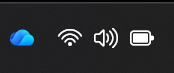
- Globe icon — No network connection detected
- Wi-Fi icon — Connected to internet, but not to the corporate network
Neither of these will give you access to printers or network resources.
What you need to see
To access printers, network drives, and the Intranet, your taskbar should show this instead:

How to get connected
- If you're in the office, connect your device (or Docking Station) to the network via an ethernet cable
If you're already connected to the docking station and still see either of the problem symbols, try this:
- Disconnect the docking station from your device
- Wait 15 seconds
- Plug it back in
Once connected, your printer and network drives should become available automatically.
Still having issues? Submit a ticket or reach out to the IT Help Desk for assistance.

